Walkthrough
- From the Photos tab, tap the green + button in the bottom-right. Rootkin opens your photo library.
- Pick one or more photos. You can also tap the camera icon to take a new photo on the spot.
- Choose who the photo is about — the primary subject. Rootkin uses this to decide where the photo lives if the person has Child Protection enabled.
- Add an optional caption. Captions help later when you're searching the photo library or linking memories. If the photo carries a "date taken" in its file metadata (most camera photos do), Rootkin pre-fills the Date taken field for you — adjust it if the metadata's wrong, or leave it blank for scanned prints you'll date later.
- Tap Upload. The photo lands on the tagged person's profile and in the Photos tab grid.
Set a profile photo
Open a photo, tap the star, and that photo becomes the person's profile picture across the tree.
Edit a caption later
You can change a caption any time. Open the photo's detail page and edit it there, or open the photo full-screen in the lightbox and tap Edit caption (or Add caption) in the footer.
Browsing photos on a profile
A person's profile shows a swipeable strip of their photos. Soft, faded edges and a small › or ‹ mean there are more photos to scroll to in that direction.
Link a photo to a voice memory
From any memory's detail page, tap + Add photos in the "Photos from this memory" section.
Share to Rootkin from your camera roll
With Rootkin installed, your iPhone's and Android's share sheets carry a Rootkin destination. Pick a photo in the Photos app, hit Share, choose Rootkin, and you skip the picker entirely. See Add photos with Share to Rootkin for the full walkthrough.
Set when the photo was taken
Every photo carries an optional date taken — separate from when you uploaded it. You can set it as much or as little as you know: a full date like June 12, 1985, or just a year like 1962, or a month and year like July 1948.
- On import. Rootkin reads EXIF metadata from camera photos and pre-fills the date in the Add Photo modal. Confirm or correct it before uploading.
- After upload. Open any photo's detail page. The Meta block shows Photo taken: <date> if a date is set, or + Add date taken if not. Tap to edit.
- In the lightbox. Open a photo from the tab grid into the full-screen lightbox. The footer carries a small ✎ Edit date action that opens the same partial-date editor.
- Age at photo. When the photo's date taken is set, and the subjects tagged in the photo have a date of birth in their profiles, the photo detail page quietly notes each subject's age in the photo — "Grandma, age 22 · Grandpa, age 24." Easy to miss; satisfying when you spot it.
Sort the Photos tab by date
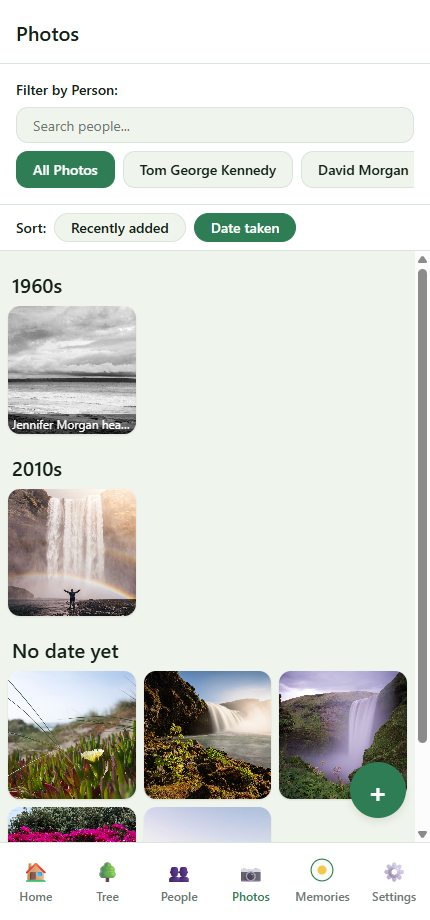
At the top of the Photos tab, switch between Recently added (default, sorts by upload date) and Date taken. The Date-taken view groups photos into decade sections — 1960s, 1970s, 2010s — with undated photos in a separate No date yet section at the bottom. Scrolling decades is a quick way to spot photos that need their dates filled in.
Still stuck?
Our team reads every message — most replies within one business day.
Last updated 13 June 2026